How to turn a still image into a short video with AI
You have a photograph, an illustration, or a rendered frame and you want it to move. Not a slideshow or a slow zoom, but actual motion: water flowing, leaves shifting, a person blinking or turning their head. That is the promise of image-to-video generation, and in the past year or so it has moved from research labs into practical tools anyone can use. The results are striking, but understanding what is happening under the hood helps you get better output and avoid disappointment.
The core idea is simple: a model learns how objects and scenes behave over time from millions of video clips, then applies that knowledge to a single input image. The model does not just guess what happens next. It builds a coherent short sequence where each frame looks like a natural continuation of the one before, while keeping the subject recognizable. That is harder than it sounds. Early attempts produced flickering, distorted messes. The current generation of models handles realism much better, but still has limits.
What the model actually does
Most image-to-video pipelines rely on two main techniques: motion transfer and frame interpolation. Motion transfer takes motion patterns from a reference video or from the model's internal knowledge and applies them to the static image. The model identifies key points on the subject, then shifts those points over time to create motion. Frame interpolation fills in the gaps between the original image and a predicted future frame, smoothing the transition so the result looks fluid rather than jerky.
Behind these steps is a video generation model trained on large datasets of real video. The model learns what natural motion looks like for different types of content: human faces, animals, landscapes, textures like water or fabric. When you feed it a photo, it searches its training memory for plausible motion patterns that match the scene. Then it generates a sequence of frames that follow those patterns while staying visually consistent with the original image.
What makes a good input image
Not every picture works equally well. The model needs clear visual cues to decide what should move and how. A portrait with a plain background, even lighting, and a centered face tends to produce smooth, believable motion. A cluttered scene with many small objects, heavy shadows, or unusual angles can confuse the model and lead to artifacts. The model may move the wrong thing, warp the background, or introduce flicker.
Sharpness also matters. A slightly blurry image gives the model less information about edges and textures, which makes it harder to generate consistent frames. If the input is low resolution, the output will look low resolution too, and the motion may appear soft or smeary. For best results, use a clean, well-lit photo or a rendered image with good contrast and detail.
Another factor is the subject's pose. A face looking straight at the camera is easier for the model to animate than a profile, because the model has more training examples of frontal faces. Similarly, a standing person with arms at their sides is easier than someone in an unusual pose like crouching or reaching. The model can handle unusual poses, but the output may be less stable.
Temporal consistency: the secret to believable video
One of the hardest parts of image-to-video generation is temporal consistency. That means the subject should look the same from frame to frame. If a person's nose shape changes between frames, or the color of a shirt shifts, the video loses realism no matter how smooth the motion is. Modern models handle this by keeping a "memory" of the original image and constraining each new frame to stay close to it, while still allowing the motion to happen.
But consistency is not free. A model that sticks too tightly to the original image may produce very subtle motion that users find boring. A model that allows more freedom may produce dramatic motion but also more glitches. The best tools let you control this trade-off, often through a setting like "motion strength" or "consistency weight." If your output looks too static, increase the motion strength. If it looks distorted, reduce it.
Cinematic audio completes the effect
Motion alone can feel incomplete. A video of a calm lake with rippling water is more immersive when it includes the sound of gentle waves and wind. Some image-to-video generators now generate cinematic audio that matches the scene: ambient sound, subtle music, or effects like footsteps or bird calls. The audio is usually generated by a separate model that analyzes the video content and picks a soundscape that fits.
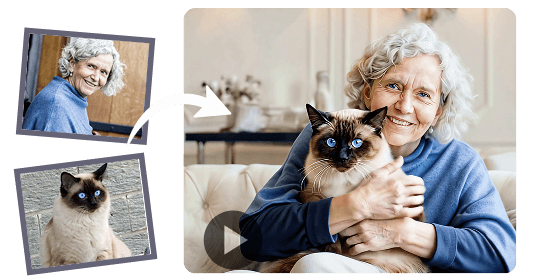
Adding audio is not just cosmetic. It helps the viewer accept the motion as real, because in real life, movement and sound go together. A video with no audio or with mismatched audio can feel hollow. If your tool supports audio generation, it is worth using, but be ready to adjust the volume or replace the track if the model picks something that does not match the mood you want.
Common pitfalls and how to avoid them
Even with a good input and a capable model, things can go wrong. Here are a few issues that come up often and how to handle them.
- Flickering background. The model focuses on the main subject and neglects the background, which then shimmers or changes between frames. Using a simpler background or a higher consistency setting helps.
- Subject drift. The model slowly moves the subject out of frame over the video. This is common with longer outputs. Short videos, under five seconds, usually avoid it.
- Unnatural motion. The model makes a person move in a way that looks robotic or exaggerated. Reducing motion strength or choosing a different motion reference can help.
- Faces shifting. The model changes a person's expression or identity between frames. This is a sign the model is not keeping enough consistency. Try a higher consistency weight or a model version trained specifically on faces.
Most of these issues are fixable by adjusting settings, not by starting over. If you hit a problem, change one variable at a time and see how the output responds.
Where the technology stands now
Image-to-video generation has improved rapidly, but it is not yet at the point where every still image can become a perfect video. The best results come from images that are simple, well-lit, and clear. Complex scenes with many subjects, extreme lighting, or unusual perspectives may still produce artifacts. The technology works very well for short clips of people, animals, landscapes, and textures. For abstract or highly stylized content, results vary.
One common question is how long the output can be. Current models typically generate a few seconds of video, often between two and ten seconds. Longer videos are possible by chaining multiple generations, but each link in the chain introduces more risk of drift or inconsistency. For most use cases, short clips are enough: a social media post, a product demo, an animated still for a presentation.
The phrase "picture to video ai" often comes up when people look for tools that bridge the gap between static images and dynamic content. And that is exactly what these models do. They take something you already have, a photograph or a design, and add motion that makes it feel alive. The output is not a substitute for full video production, but it is a fast way to create engaging short videos without a camera, actors, or editing skills.

If you are trying a picture to video ai tool for the first time, start with a single subject on a plain background. Watch the output closely for consistency. If the motion looks good, try more complex inputs. The key is to treat the model as a creative partner: it has strengths and weaknesses, and learning those helps you get the most out of it.
As the technology matures, expect longer outputs, better handling of complex scenes, and more control over the exact motion. For now, the results are already impressive for anyone who has a good image and wants to see it move.